Most people skip app update notes, and that can cost you privacy, money, or hours.
App changelogs tell you what’s fixed, what’s new, and when an app is asking for extra permissions.
But stores hide them in different places, and some notes are vague or even fake.
This guide shows how to find update notes on iOS and Android, spot red flags, and verify a changelog actually came from the real developer, so you can update safely, avoid bad actors, and know when to wait.
Locating App Update Changelogs on iOS and Android
Every major app update includes a changelog. It’s a short document explaining what changed, what’s new, and what got fixed. The challenge is knowing exactly where to look, because the location varies across platforms, developers, and even individual apps.
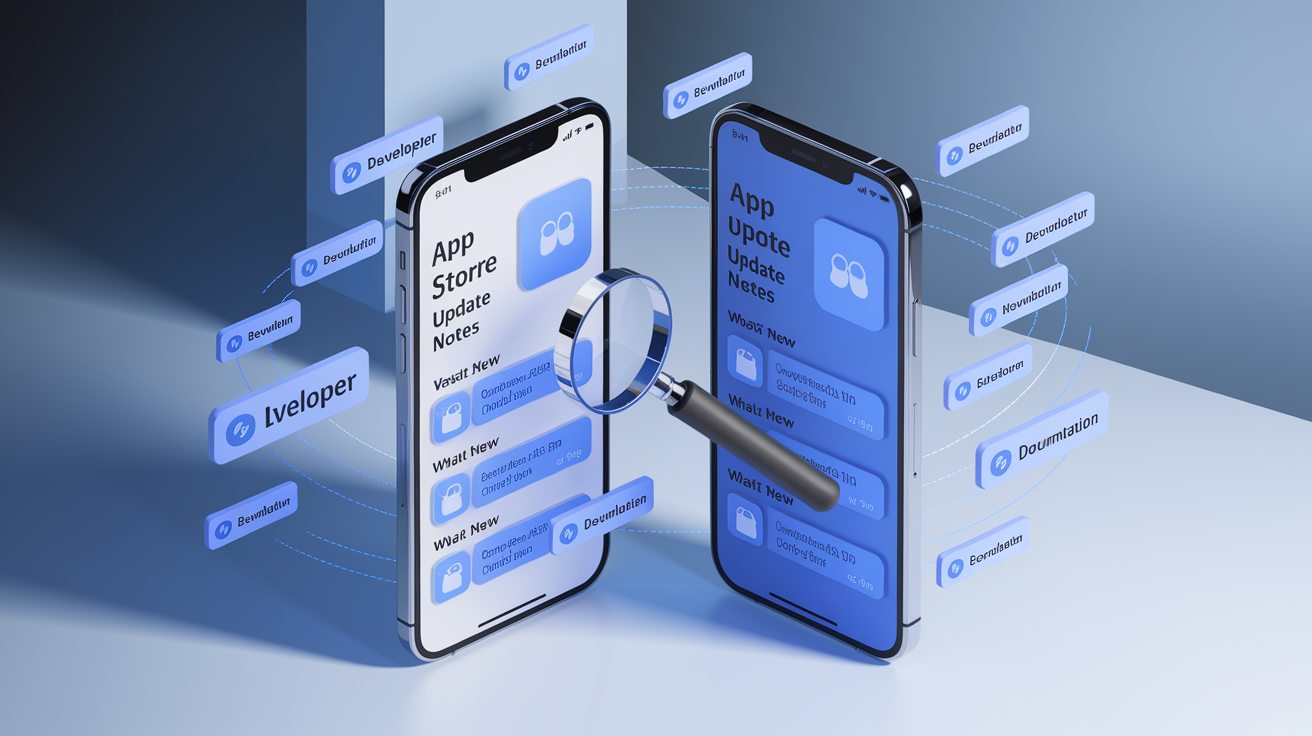
On iOS, the official changelog lives inside the App Store. Open the App Store, search for the app, then scroll down to “Version History.” This section shows the latest update notes plus a chronological archive of every previous version’s changelog. Tap “Version History” to expand older entries and compare what changed across releases. Apple requires developers to submit update notes whenever they push a new version, so this is your most reliable source for iOS apps.
On Android, changelogs appear under “What’s New” in the Google Play Store. Open the Play Store, navigate to the app’s page, and look for the “What’s New” section near the top. Usually right below the app description and screenshots. Google Play displays only the most recent update notes by default, and there’s no built-in version history archive. If you need older changelogs, you’ll have to check external sources like the developer’s website or third-party changelog aggregators.
Some developers publish more detailed changelogs outside the app stores:
Developer website or blog. Many apps maintain a dedicated /changelog, /updates, or /releases page on their official site.
GitHub releases. Open-source apps and developer tools often post full technical changelogs at github.com/org/repo/releases.
In-app changelog widget. Apps like Slack, Notion, and Trello show update notes inside the app itself, usually accessible from a settings menu or “What’s New” button.
Email newsletters. Some apps send update summaries to users via email, especially for major feature releases.
App documentation portals. SaaS tools and enterprise apps (Salesforce, HubSpot, Stripe) host comprehensive changelogs in their documentation hubs, often at docs.appname.com/changelog.
Third-party changelog aggregators. Services that track app updates can surface changelogs for thousands of apps in one place, though coverage varies.
Social media or community forums. Occasionally, developers share detailed release notes on Twitter, Reddit, or Discord before the official store notes go live.
If the app store changelog feels incomplete or vague, cross-check the developer’s official website or GitHub repository. That’s where the most detailed technical notes usually live.
Understanding the Information Inside App Update Changelogs
A changelog can range from a single vague line (“Bug fixes and performance improvements”) to a multi-page technical manifesto. Understanding what you’re reading requires knowing the vocabulary developers use and recognizing which details actually matter.
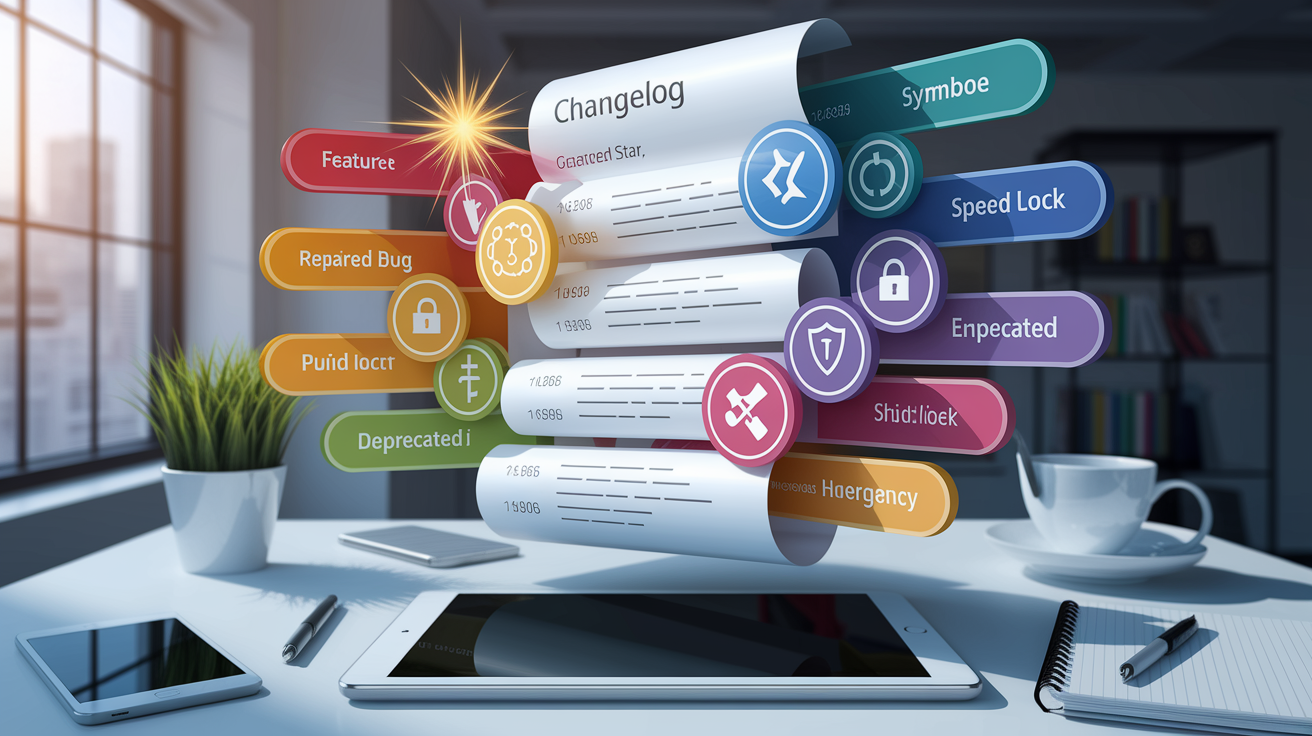
Most changelogs are organized into categories. New features, bug fixes, performance improvements, security patches, and deprecations. “New features” means functionality that didn’t exist before. “Bug fixes” means problems that have been resolved. “Performance improvements” refers to speed, memory, or battery optimizations. “Security patches” address vulnerabilities that could put your data or device at risk. “Deprecations” signal features or integrations that will be removed in future updates, often with a migration window specified.
The level of detail varies wildly. A responsible developer writes specific, user-facing descriptions. “Fixed a crash when uploading photos over 10 MB” or “Added dark mode support for the Settings screen.” A less transparent developer writes generic placeholders. “Various bug fixes” or “Improvements to app stability.” Vague language isn’t always a red flag, but it makes verification harder. If the changelog lists concrete changes, you can test them yourself. If it says “minor improvements,” you’re flying blind.
Here are the most common terms you’ll encounter in app update changelogs and what they actually mean:
Bug fix. A code change that eliminates a crash, error, or unintended behavior.
Performance improvement. Changes that make the app faster, use less memory, or drain less battery.
Security patch. A fix for a vulnerability that could allow unauthorized access, data leaks, or malware.
Deprecated. A feature or API that still works now but will be removed in a future version. Users should stop relying on it.
Breaking change. An update that removes or alters existing functionality in a way that may disrupt current workflows or integrations.
Hotfix. A small, urgent update pushed outside the normal release schedule to address a critical issue.
When you see a changelog, ask yourself: does this explain what changed and why it matters? If the answer is yes, the developer is doing their job. If the answer is no, treat the update with extra caution.
Spotting Red Flags in App Update Notes
Not every app update is harmless. Some changelogs reveal warning signs that deserve a closer look before you hit “Update.” Learning to spot these red flags can help you avoid malware, privacy invasions, and sudden feature losses.
Overly vague or repetitive update notes are the first warning sign. If an app pushes updates every few days with identical “bug fixes and performance improvements” text, something is off. Legitimate developers rotate their changelog language and call out specific fixes. Repeated generic notes suggest the app is either poorly maintained or hiding its true changes.
Another red flag is sudden permission expansions. If a calculator app suddenly requests access to your contacts, camera, and location, the changelog should explain why in detail. If it doesn’t, assume the worst.
Watch for these warning signs in app update changelogs:
No changelog at all. The developer didn’t bother writing one, or the update bypassed normal review processes.
Generic text used repeatedly. Identical “bug fixes” notes across multiple consecutive updates with no specifics.
New permissions without explanation. The app asks for new access (location, camera, microphone, contacts) but the changelog doesn’t mention it.
Sudden version number jumps. Jumping from version 2.1 to 8.0 overnight with no major feature announcement suggests cloning or malicious takeover.
Broken English or grammar errors. Professional developers proofread their changelogs. Scammers often don’t.
Contradictory information. The changelog says “added dark mode” but the version number indicates a minor patch, or the listed features don’t match what’s actually in the app.
Missing technical details for major changes. A claim like “improved security” with zero explanation of what changed, what was vulnerable, or what users should do.
If you spot one or more of these red flags, delay the update and do some research. Check the app’s recent reviews for complaints about new behavior, unexpected ads, or crashes. Visit the developer’s official website or social media to see if they’ve acknowledged the update. If the red flags persist and the developer isn’t transparent, consider uninstalling the app entirely and finding a safer alternative. Your instincts are data. Listen to them.
Verifying the Authenticity of Changelogs
A changelog is only as trustworthy as its source. Fraudulent apps, clones, and compromised developer accounts can publish fake update notes that look legitimate at first glance. Verifying authenticity means confirming that the changelog actually came from the real developer and hasn’t been tampered with.
Start with the app store itself. Both the iOS App Store and Google Play Store display the developer name prominently on every app page. Compare that name to the official developer you expect. If you’re updating Slack, the developer should be “Slack Technologies, LLC,” not “Slack Inc.” or “Slack Messenger.” Small variations in spelling, punctuation, or legal entity names are common tactics for app clones. Tap the developer name to see their full portfolio of apps. Legitimate developers usually have a consistent history. Same naming conventions, similar design quality, and a track record of regular updates. A developer with only one app and no history is a risk.
Cross-check the changelog against the developer’s official website and release pages. Many reputable apps publish detailed changelogs on their website, blog, or documentation portal. Navigate to the official site (don’t click links in the app store. Type the URL yourself or use a search engine) and look for a /changelog, /updates, or /releases page. Compare the store’s update notes to the website’s. They should match. If the store changelog says “Added video calls” but the website changelog makes no mention of it, you’ve found a discrepancy that needs investigation.
Look at past update patterns. Open the app’s Version History (iOS) or scroll through the developer’s app listing (Android) to see how often they release updates and how detailed the notes are. A developer who has published thoughtful, specific changelogs for two years straight is unlikely to suddenly switch to vague, generic notes. Unless something went wrong. If the pattern changes abruptly, investigate further before updating.
For open-source apps and developer tools, check the GitHub repository. Navigate to github.com/org/repo/releases and compare the official GitHub release notes to the app store changelog. The GitHub version is usually more detailed and includes technical commit references, contributor credits, and links to specific issues that were resolved. If the app store changelog contradicts the GitHub release, trust GitHub. It’s harder to fake a public commit history than a store listing.
Checking Developer Identity and Reputation
The developer behind an app is your first line of defense. A trustworthy developer is transparent, responsive, and has a track record of safe, reliable updates. An unknown or suspicious developer should make you pause before clicking “Update.”
Every app store listing includes the developer’s name and, in many cases, a link to their official website. On iOS, tap the developer name under the app title to see their complete app portfolio and contact information. On Google Play, scroll down to “Developer contact” for their email, website, and privacy policy link. Visit the official website. Does it look professional? Does it match the branding of the app? Does it include contact details, company information, and support resources? Scammers rarely invest in polished websites.
Here are five key markers of developer reputation to check before updating:
Verified website and contact information. The developer lists a real email address, physical address, or support page, and the website matches the app’s branding.
Consistent publishing history. The developer has released multiple apps or maintained the same app for months or years with regular, predictable updates.
Transparent privacy policy and terms of service. The app’s privacy policy is easy to find, written in clear language, and explains what data is collected and why.
Active community presence. The developer engages with users on forums, social media, GitHub, or app store reviews, responding to questions and acknowledging bugs.
App store credibility signals. High download counts, verified badges (where applicable), and a long history on the platform without sudden gaps or ownership changes.
Long-standing developers typically maintain consistent publishing patterns. If an app has been updated every 2 to 3 weeks for two years and suddenly goes six months without an update, or starts updating daily with vague notes, something changed. Ownership transfers, developer account compromises, and app sales to less reputable companies can all trigger these shifts.
Check recent user reviews. Scroll through the latest 1 and 2-star reviews to see if users are reporting new problems. Intrusive ads, unexpected data requests, crashes, or behavior that wasn’t there before. If dozens of recent reviews mention “the app changed after the last update,” trust the crowd. Users often spot malicious changes faster than automated review systems do.
Confirming App Update Integrity Through Signatures and Store Controls

Behind the scenes, both iOS and Android use cryptographic signatures to ensure that every app update comes from the authorized developer. These signatures act as a digital seal. If the code has been tampered with or submitted by an impostor, the app store rejects it before it ever reaches your device.
When a developer uploads an update to the App Store or Google Play, they sign it with a private cryptographic key that only they possess. The app store verifies the signature against the developer’s public key on file. If the signature matches, the update is genuine. If it doesn’t, the upload fails. This system prevents malicious actors from pushing fake updates to apps they don’t own, even if they manage to clone the app’s appearance or name.
As a user, you don’t need to manually verify signatures. The app store does it for you automatically. Every update you receive through the official App Store or Google Play has already passed signature verification. That’s why sideloading apps (installing APKs from third-party websites on Android) is risky: you’re bypassing the signature check and trusting the source to be legitimate.
| Platform | Verification Method |
|---|---|
| iOS (App Store) | Apple signs all apps with a developer certificate; updates must match the original app’s signature or they’re rejected before distribution. |
| Android (Google Play) | Developers sign APKs/AABs with a private key; Google Play verifies the signature matches the app’s existing key before allowing the update to publish. |
| Android (Sideloaded APKs) | No automatic verification; users must manually check APK signatures using tools like apksigner or jarsigner, or trust the source. |
On Google Play, apps enrolled in App Signing by Google Play get an extra layer of protection. Google holds the app’s signing key in a secure vault and re-signs every update before distribution. Even if a developer’s local key is compromised, attackers can’t push updates without Google’s verification. On iOS, Apple’s certificate system works similarly. Apps are signed with a developer certificate that Apple issues and monitors. If the certificate is revoked or the app’s signature doesn’t match, the update won’t install.
The practical takeaway: stick to official app stores. If you’re updating apps exclusively through the App Store or Google Play, signature verification happens automatically and silently. If you’re downloading APKs from third-party sites, you’re on your own, and the risk of fake updates goes up dramatically. When in doubt, wait for the official store version.
Using Trusted Tools and Resources for Extra Verification
Beyond the built-in app store protections, third-party tools and services can help you track version changes, monitor permission requests, and cross-check security advisories. These tools are especially useful if you manage apps for an organization or if you’re particularly security-conscious.
Changelog tracking services monitor app updates across platforms and aggregate release notes into searchable databases. Some of these services send alerts when specific apps you care about publish new updates, and they can highlight permission changes or flag unusual update patterns. They’re not foolproof, but they give you a second layer of visibility beyond the app store’s native interface.
Here are the types of tools and resources you can use for extra verification:
Third-party changelog aggregators. Services that collect and archive release notes from multiple apps, making it easy to compare update histories and spot anomalies.
Permission monitoring tools. Apps or browser extensions that track what permissions an app requests over time and alert you when new permissions are added.
Security advisory feeds. Databases like GitHub Security Advisories, CVE databases, and vendor-specific security bulletins that publish known vulnerabilities and patches.
App reputation checkers. Tools that analyze app store listings, user reviews, developer history, and external reputation signals to flag potentially risky apps.
APK signature verification utilities. Command-line tools (apksigner, jarsigner) that let you manually inspect the cryptographic signature of an Android app package.
Version control comparison tools. For open-source apps, tools that visualize code diffs between GitHub releases, making it easy to see exactly what changed line by line.
These tools are most useful when you’re evaluating apps for work, managing a fleet of devices, or responding to a security incident. For everyday personal use, the app store’s built-in protections are usually enough. But if you’re installing an app that handles sensitive data (banking, health records, authentication) or if you’re responsible for securing devices for a team, these extra layers of verification can catch problems the app store might miss.
When using third-party tools, make sure the tool itself is reputable. Check the developer’s website, read reviews, and confirm the tool doesn’t require excessive permissions or access to your device. The goal is to add security, not introduce new risks.
Best Practices for Evaluating and Approving App Updates
Safe updating isn’t just about reading changelogs. It’s about building habits that reduce risk over time. A disciplined approach to evaluating updates can prevent malware, preserve functionality, and give you an escape route if something goes wrong.
Read the changelog before you update, every time. It takes ten seconds. Look for specific, meaningful changes and check whether new permissions are listed. If the notes are vague or missing, search the app’s official website or GitHub releases for more detail. If you can’t find a clear explanation of what changed, delay the update until you do. There’s rarely a reason to rush. Most updates can wait a day or two while you verify.
Here are six best practices for safe update evaluation:
Review changelogs before installing. Don’t auto-update apps that handle sensitive data. Manually review the changelog first.
Check for new permissions. If the update requests new access (location, camera, contacts), make sure the changelog explains why.
Delay updates for 24 to 48 hours. Let early adopters find crashes or malicious behavior before you install. Monitor recent reviews during this window.
Monitor user reviews post-update. Check the app’s latest 1 and 2-star reviews after a new version launches to see if users report problems.
Use staged rollouts when available. On Android, some apps roll out updates gradually. If you’re not in the first wave, you benefit from early feedback.
Keep a rollback plan. On Android, you can sideload an older APK if the new version breaks something. On iOS, restoring from a backup may be your only option.
Auto-updates are convenient, but they come with risk. For apps that handle passwords, financial data, health records, or business communications, turn off auto-update and review each version manually. For low-risk apps (games, news readers, weather), auto-update is usually fine. Tailor your update discipline to the app’s criticality.
If you install an update and immediately notice new behavior (unexpected ads, requests for permissions you didn’t approve, sluggish performance, or crashes), uninstall it or roll back to the previous version. On Android, you can download the previous APK from APKMirror or similar archives and sideload it. On iOS, your options are limited. If you have a recent backup, restore it. If not, uninstall the app and wait for the developer to fix the issue.
When to Seek Additional Help or Report Concerns

Sometimes a changelog raises questions you can’t answer on your own. Maybe the update notes are contradictory, maybe the app is behaving suspiciously, or maybe you’ve spotted what looks like a scam. Knowing when to escalate and where to get help can protect you and other users.
If the changelog seems legitimate but you’re unsure about a specific change, contact the developer directly. Most app store listings include a “Developer contact” section with an email address or support link. Send a polite, specific message: “The latest update requests access to my contacts. The changelog doesn’t explain why. Can you clarify?” Reputable developers respond, usually within a few days. If you get no reply or a vague brush-off, treat that as a red flag.
If you believe an update is malicious, fraudulent, or violates app store policies, report it. On iOS, scroll to the bottom of the app’s store page and tap “Report a Problem.” On Google Play, open the app’s page, tap the three-dot menu, and select “Flag as inappropriate.” Describe the issue in detail: what the changelog claims, what the app actually does, and why you believe it’s unsafe. App stores rely on user reports to catch bad actors that slip through automated review.
Here are scenarios that justify seeking help or filing a report:
The app requests permissions that have nothing to do with its stated purpose. A flashlight app asking for contact access, for example.
The changelog contradicts the app’s actual behavior. The notes say “bug fixes,” but the app now shows full-screen ads or tracks your location.
You suspect the app is a clone or impersonator. The developer name is slightly misspelled, or the app icon mimics a popular app but the functionality is different.
The developer is unresponsive or hostile. You contacted support with a legitimate question and received no reply or an aggressive response.
Other users are reporting the same suspicious behavior. Recent reviews mention scams, malware, or unexpected data collection, and the developer hasn’t addressed it.
If the app is used in a work or organizational context, escalate to your IT or security team immediately. They can investigate further, block the app across managed devices, and coordinate a response. If you’re an individual user and the app handles sensitive data (banking, health, authentication), uninstall it and find a trusted alternative. Don’t wait for confirmation if your gut says something is wrong.
For open-source apps, you can also open an issue on the project’s GitHub repository or post in the community forum. Describe what you observed, reference the version number, and ask whether the behavior is intentional. Open-source communities are usually quick to investigate and transparent about findings.
Final Words
In the action: you learned where changelogs appear, how to read common update terms, spot red flags, and verify a developer’s identity and update signatures.
We covered App Store and Google Play locations, external developer notes, simple tools for extra checks, and safe habits like delaying suspicious updates.
Before you tap Update, use those quick checks and trust store-level verification; if something feels off, pause and report. This should help you learn how to read and verify app update changelogs and keep your device running smoothly.
FAQ
Q: How to see iPhone app update history?
A: The iPhone app update history appears on an app’s App Store page under Version History. Open the App Store, find the app, scroll to Version History to view past versions and release notes; some devs keep full logs on their sites.
Q: How to check if an app has been updated and how to see app update history on Google Play?
A: To check if an app was updated, open its Google Play page—look at the “What’s new” section and the “Updated on” date; some developers also list older version notes on their site or in-app.
Q: What will happen to Android in September 2026?
A: Specific changes to Android in September 2026 aren’t confirmed here; expect routine security patches and possible releases. Check Google’s official Android blog, Play Console, or developer announcements for confirmed updates.
Leave a Reply